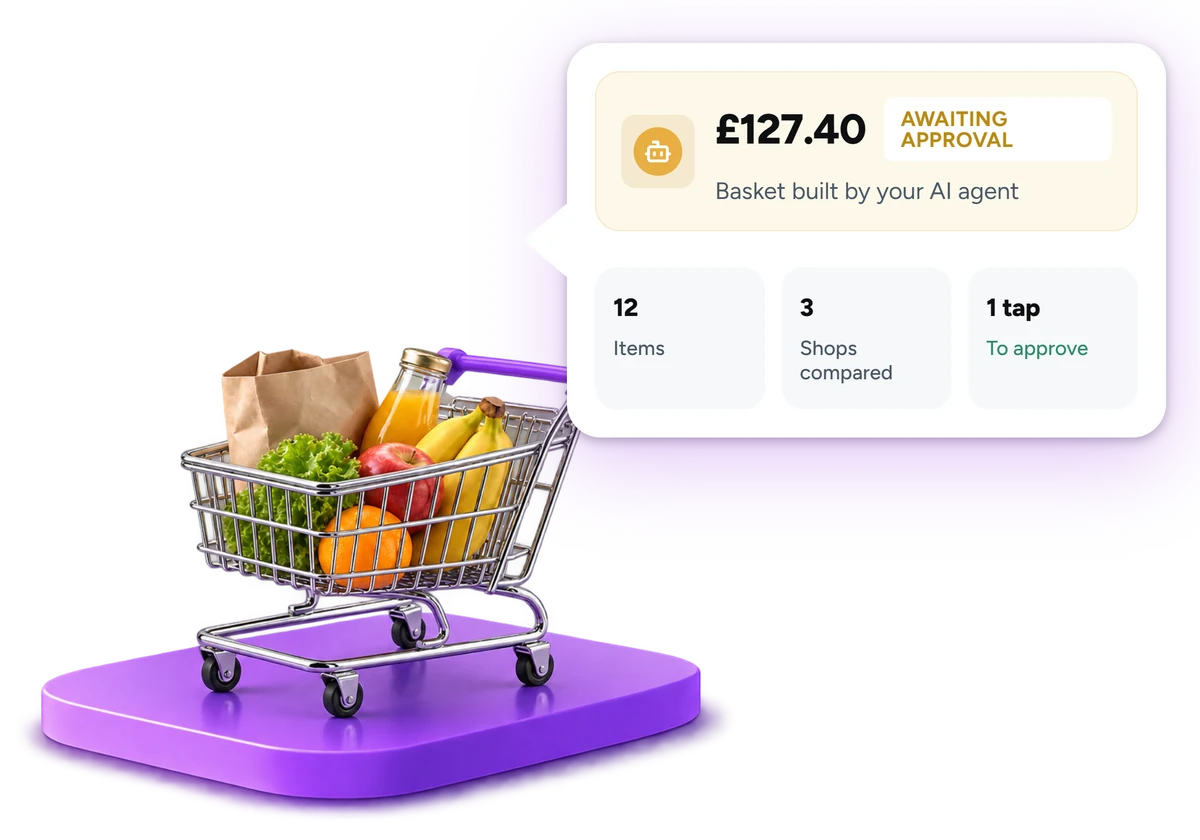

You can now take payments with Grok, just by asking. Most small businesses already ask an AI assistant to draft emails or summarise a document. The next step is letting it handle the money admin too: who paid today, which payment failed, and sending the customer a fresh link before they forget. With Atoa’s MCP server, Grok can do exactly that. You ask in plain English, Grok calls Atoa, and the answer comes back from your real payment data.
This guide shows how to take payments with Grok by connecting it to Atoa in about two minutes, with no code, and walks through a real session using sandbox data: checking the day’s takings, spotting a failed payment and sending a new link for it.
Why take payments with Grok?
Most payment admin is small, repetitive questions: who paid, what is still outstanding, which payment bounced. Each one usually means logging in to a dashboard, filtering a table and copying a link into a message. When you take payments with Grok, those questions become one sentence each, and the answer comes back from your live Atoa data rather than a spreadsheet someone forgot to update.
- Faster follow-up. Spot a failed payment and send a fresh payment link in the same conversation.
- Lower fees than cards. Atoa payments run on Pay by Bank, so money moves account to account with no card scheme fees.
- No new software for the team. Anyone with access to the Grok workspace can ask; nobody needs dashboard logins or exports.
What is the Atoa MCP server?
MCP, the Model Context Protocol, is an open standard that lets AI assistants use tools from other services. Atoa runs a hosted MCP server at https://mcp.atoa.me/mcp that gives an assistant like Grok a set of payment tools: creating payment requests, checking their status, searching transactions, managing customers, and, in production, refunds.
Because the server is hosted by Atoa, there is nothing to install. Grok connects to it over the internet, sends your Atoa key with each request, and only sees the data that key is allowed to see. A sandbox key can only ever reach sandbox data.
What you need to take payments with Grok
- An Atoa business account. Sign up free if you do not have one yet.
- A Grok account with access to custom connectors. Availability can depend on your Grok plan.
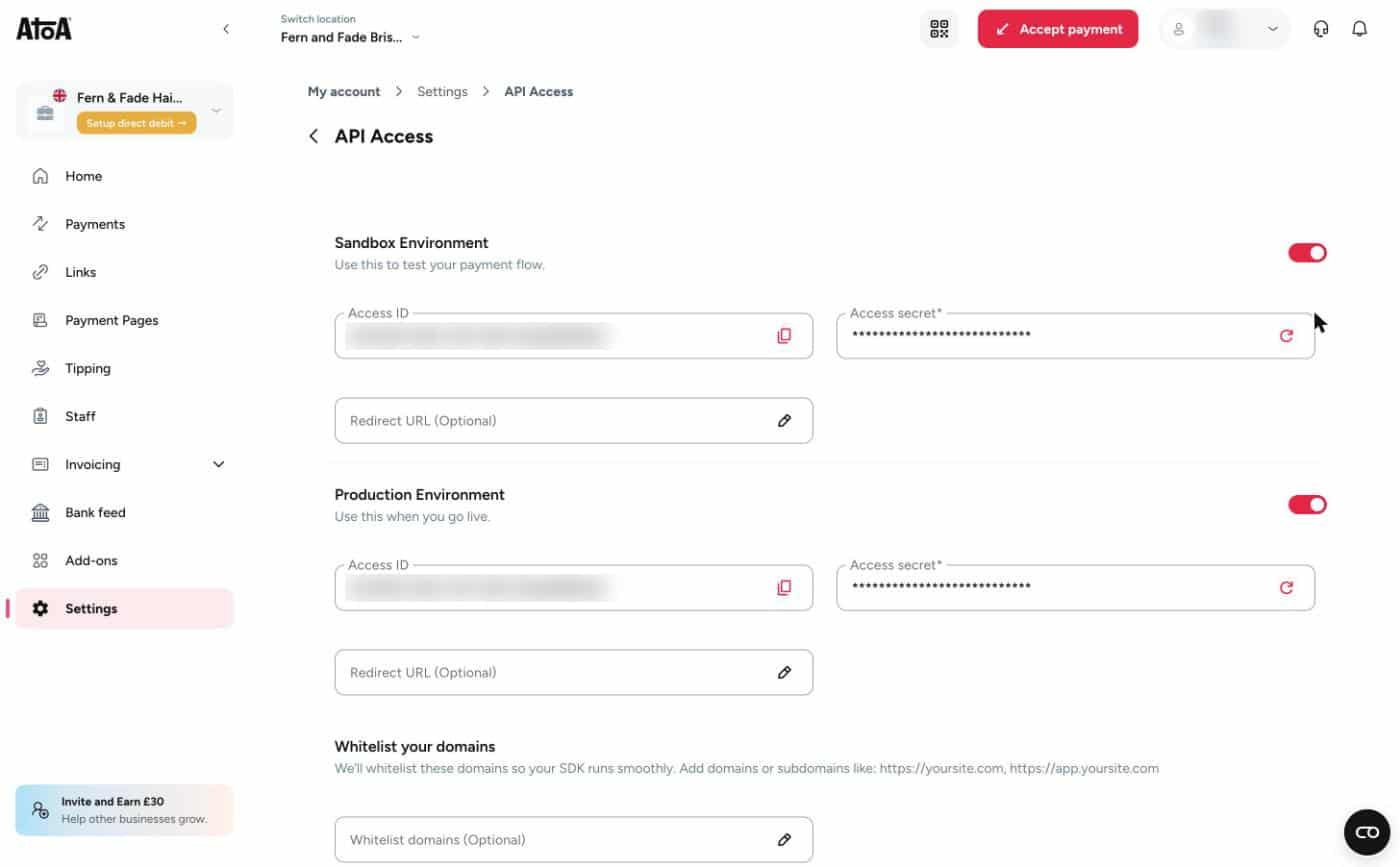
- Your Atoa access key, from the Atoa dashboard under Settings, API Access.
Step 1: Copy your Atoa access key
In the Atoa dashboard, open Settings, then API Access and copy the Access secret for Production. If you want to try things first with test data, use the Sandbox Environment secret instead. Atoa only shows a newly generated secret once, so keep it somewhere safe, such as your password manager.
Step 2: Add Atoa as a custom connector in Grok
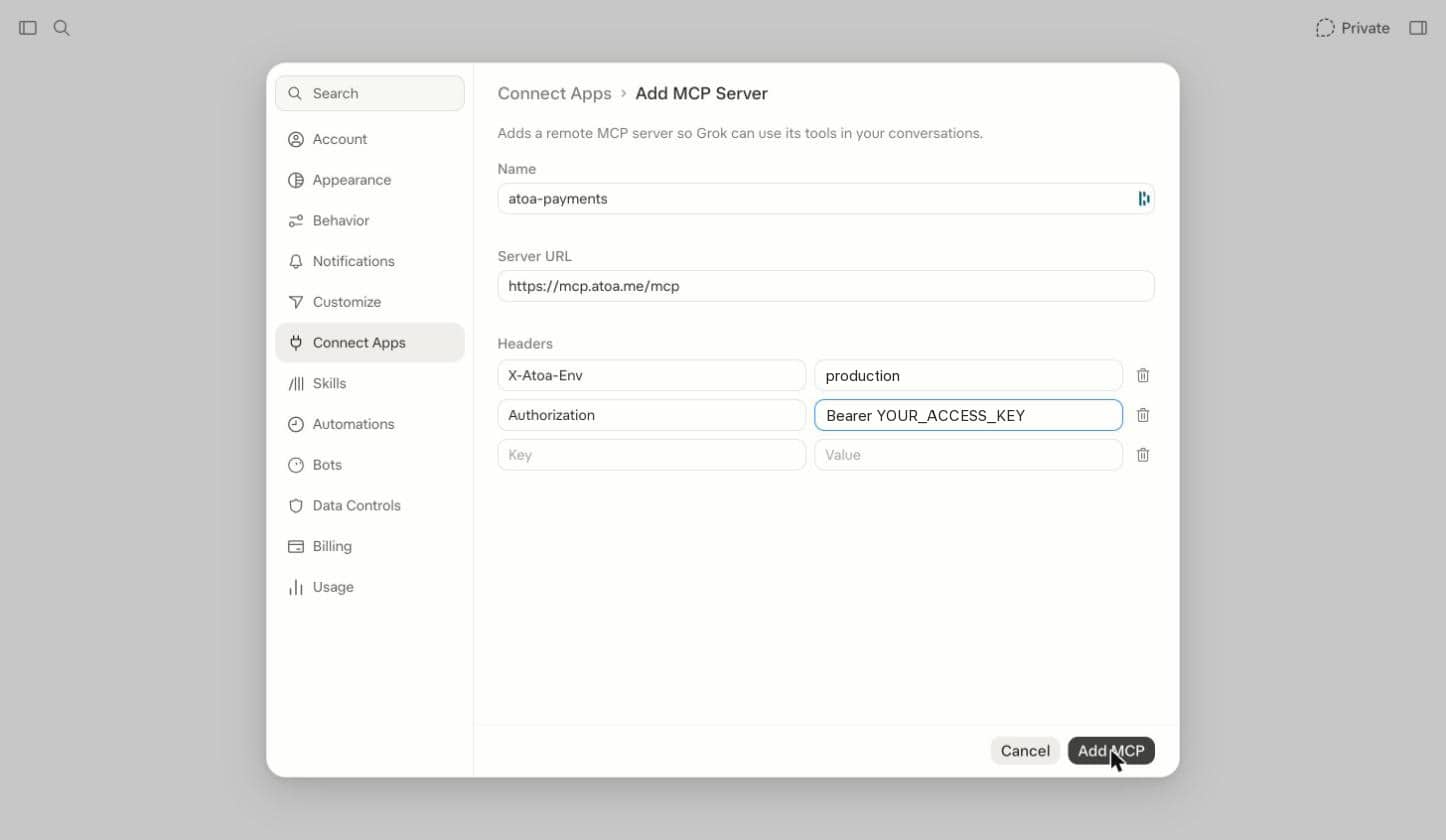
In Grok, open Settings, go to Connect Apps and click Add a custom connector at the bottom of the list. Fill in the form like this:
| Field | Value |
|---|---|
| Name | atoa-payments |
| Server URL | https://mcp.atoa.me/mcp |
| Header 1 | X-Atoa-Env = production (or sandbox while testing) |
| Header 2 | Authorization = Bearer YOUR_ACCESS_KEY |
Click Add MCP. The connector now appears under Custom in Connect Apps. The environment header and the key must match: a production key with X-Atoa-Env: production, or a sandbox key with sandbox. A mismatch is the most common reason for a “Merchant not found” error.
Step 3: Take payments with Grok in a chat
Now you are ready to take payments with Grok. Start a new chat, click + in the message box, choose Connectors and select atoa-payments. Then ask a question about your payments. For this walkthrough we used a sandbox account for a fictional salon, Fern & Fade Hair Studio, and its Clifton studio in Bristol, with a few test bookings already paid and one that failed.
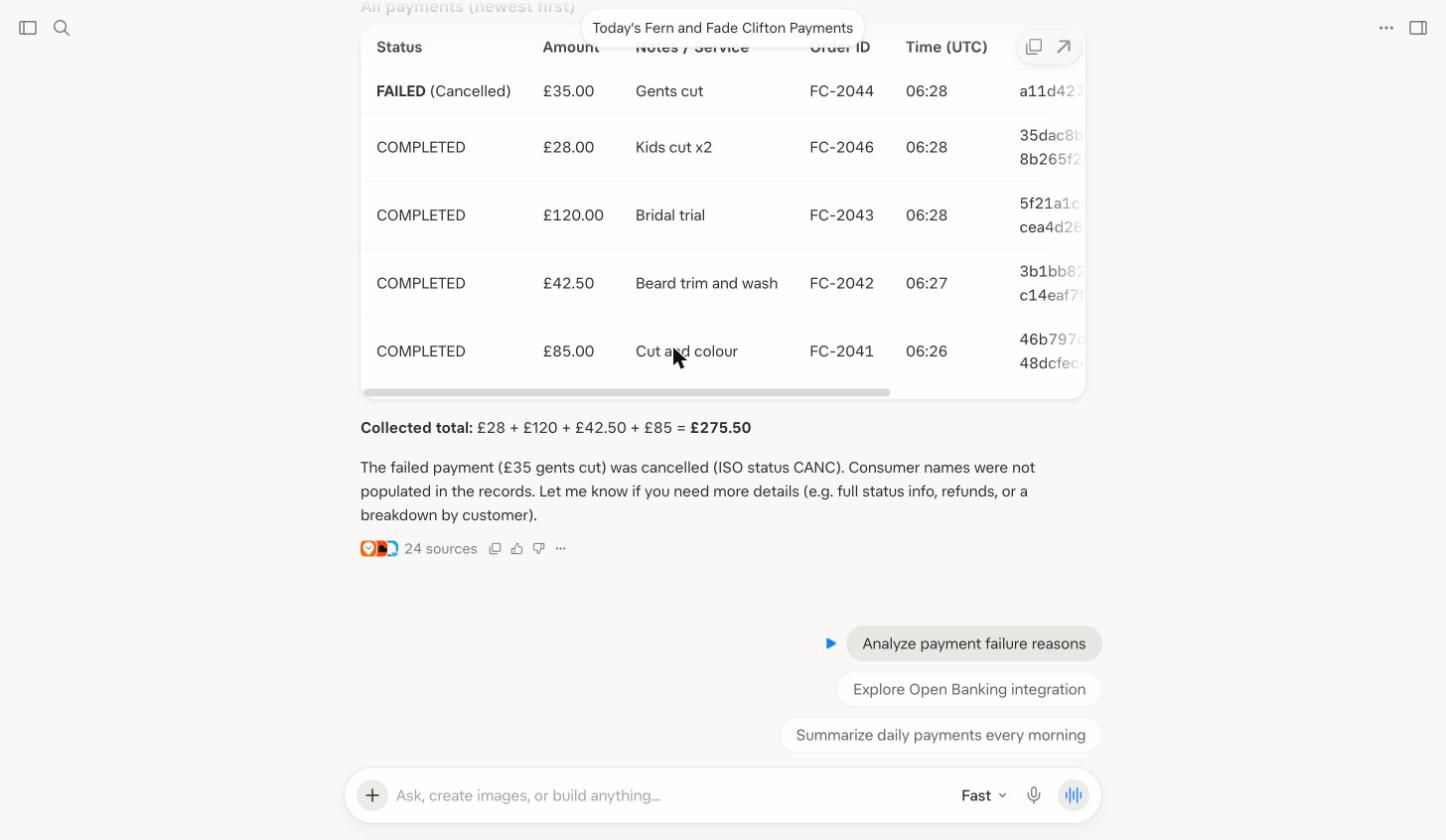
“Show me all of today’s payments at Fern and Fade Clifton, including any that failed”
Grok calls Atoa’s transactions tool, filters to the Clifton studio, lists every payment and adds up what has been collected: four paid, £275.50 in total, and one £35 payment that failed. No exports, no logging in to a separate dashboard.
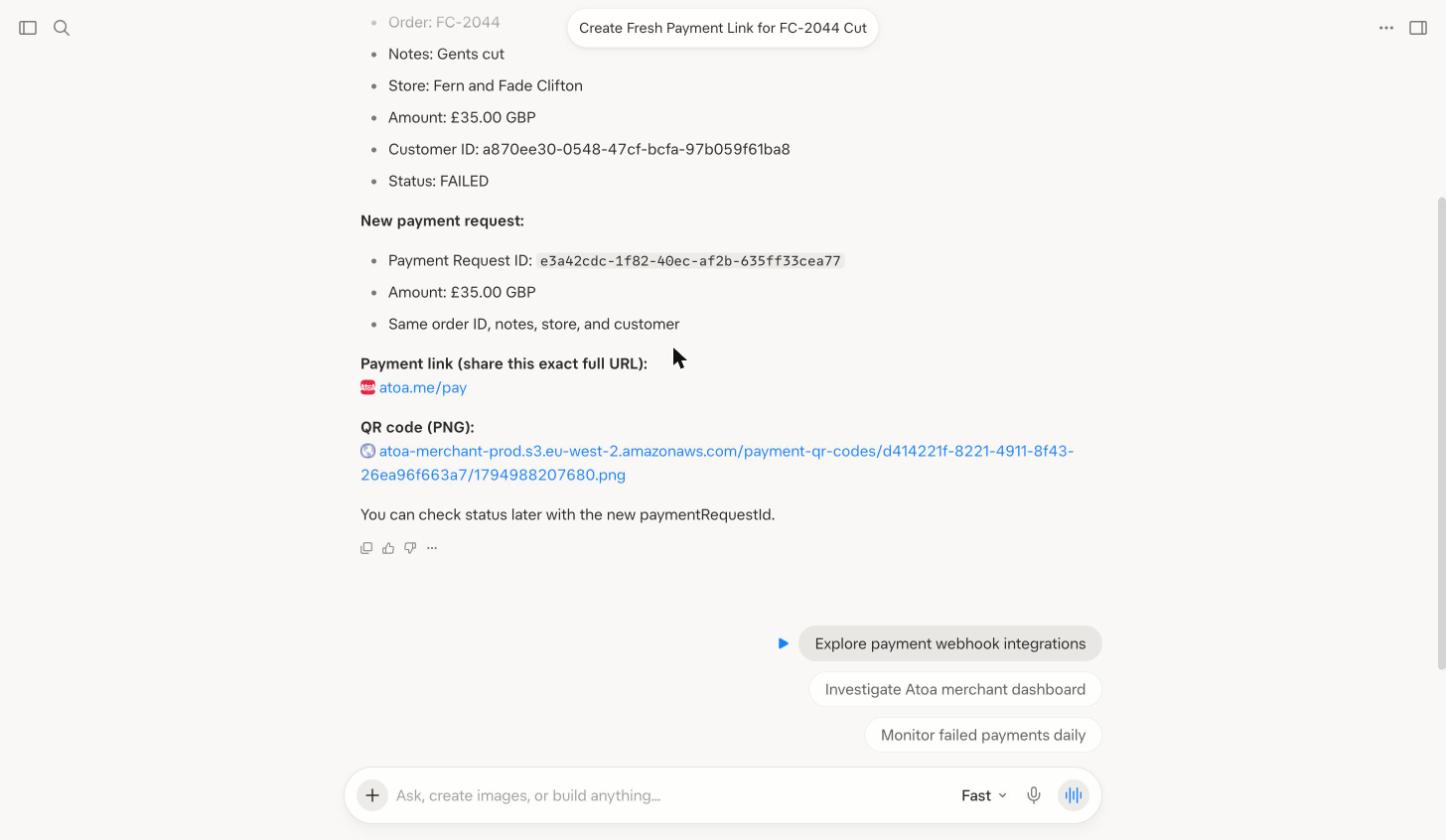
“Today’s gents cut FC-2044 failed. Create a fresh payment link for the same customer and amount”
This is where an assistant earns its keep. Grok looks up the failed payment, takes the customer and amount from the original record, and creates a new payment request linked to the same customer, ready to send. Two tool calls, one sentence. Referring to the order number rather than the customer’s name keeps it exact.
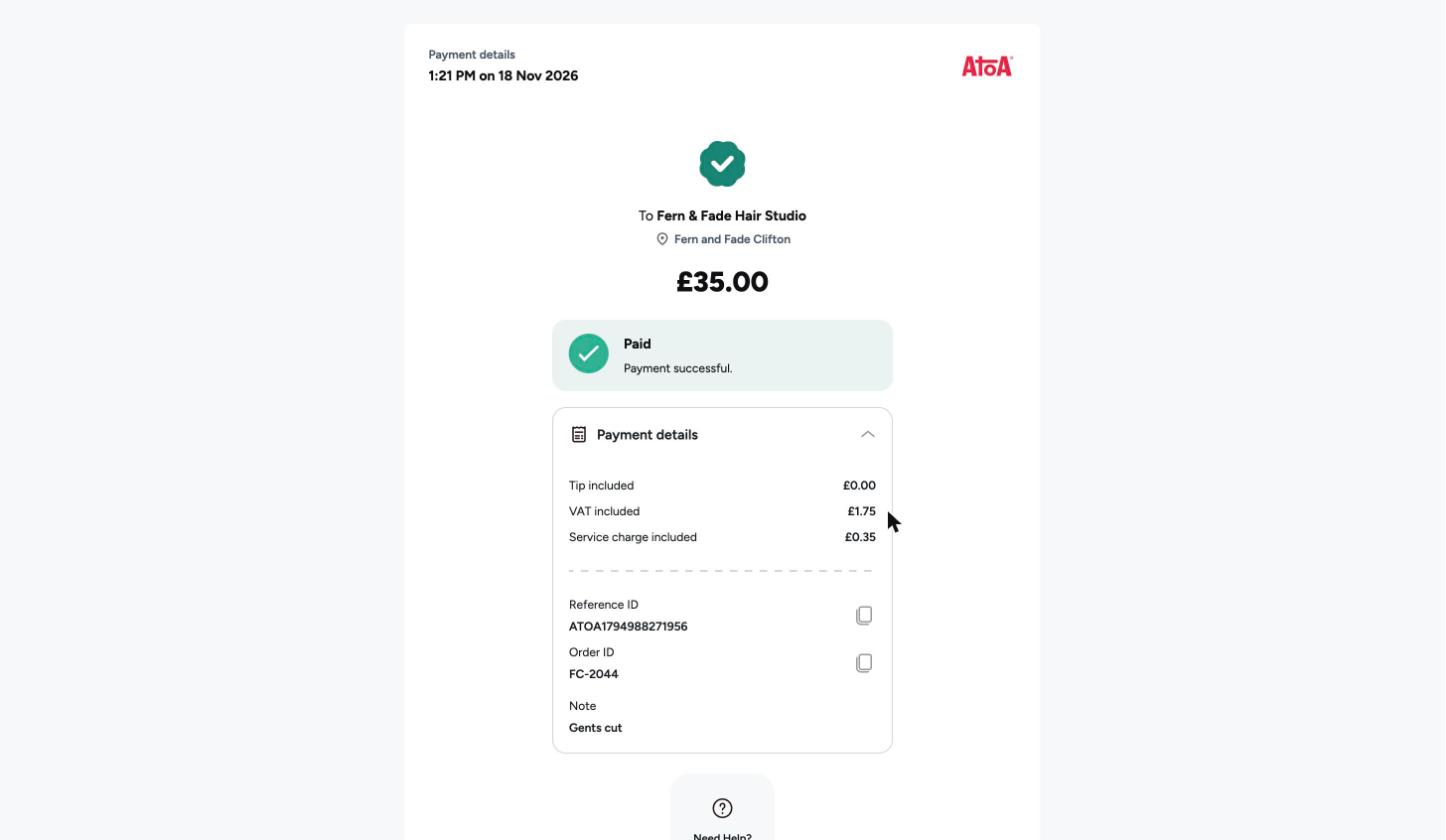
The customer pays by bank
The customer opens the link, picks their bank and approves the payment in their Bank app. The money moves bank to bank, without card details being typed anywhere. In sandbox, the Atoa test bank lets you choose the outcome, so you can try completed, failed and cancelled payments.
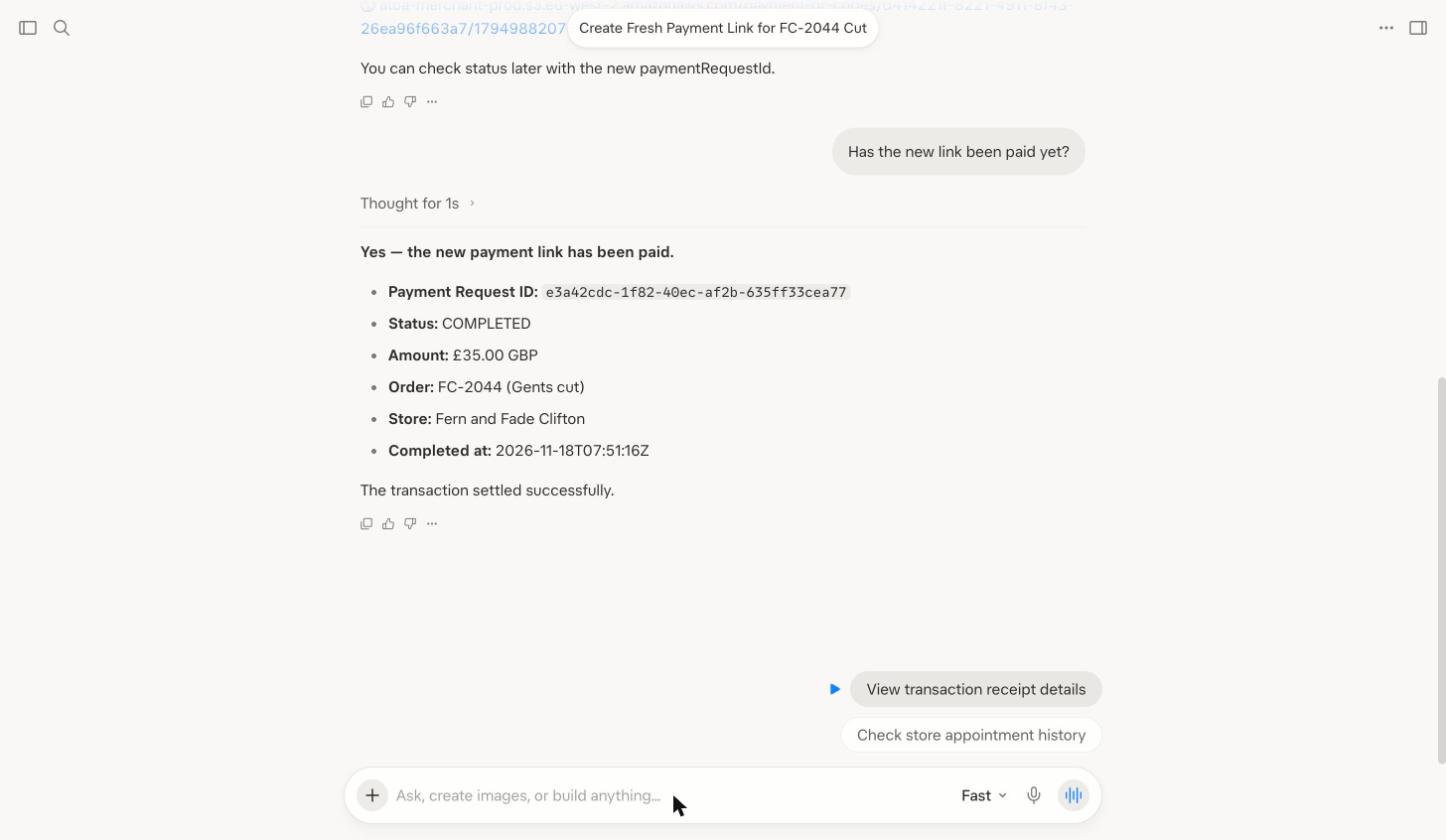
“Has the new link been paid yet?”
Ask again whenever you like. Grok checks the payment status with Atoa and confirms it has completed, with the amount, order reference and time.
More ways to take payments with Grok
- “Create a £64 payment link for Emily Clarke’s balayage deposit.”
- “Which payment links from this week are still unpaid?”
- “Add a new customer, James Carter, with this email address.”
- “How much did Clifton and Bristol each take last month?”
- “Refund £10 of order FC-2043.” (production only)
Who takes payments with Grok?
| Business | What they ask Grok |
|---|---|
| Salons and barbers | “Send a deposit link for Saturday’s bridal trial” and “Who hasn’t paid for today’s appointments?” |
| Trades and home services | “Create a £180 link for the boiler service at 14 Harbour Row” and “Has the Patel job been paid?” |
| Clinics and dentists | “List this week’s failed payments and resend the links” |
| Multi-site retailers | “How much did each store take yesterday?” |
If your customers already message you, this pairs well with conversational payments: Grok creates the link, and you send it in the chat, SMS or email thread the customer is already in. For the bigger picture of AI agents that buy and sell on your behalf, see what agentic commerce is and the protocols behind it.
Keeping it safe when you take payments with Grok
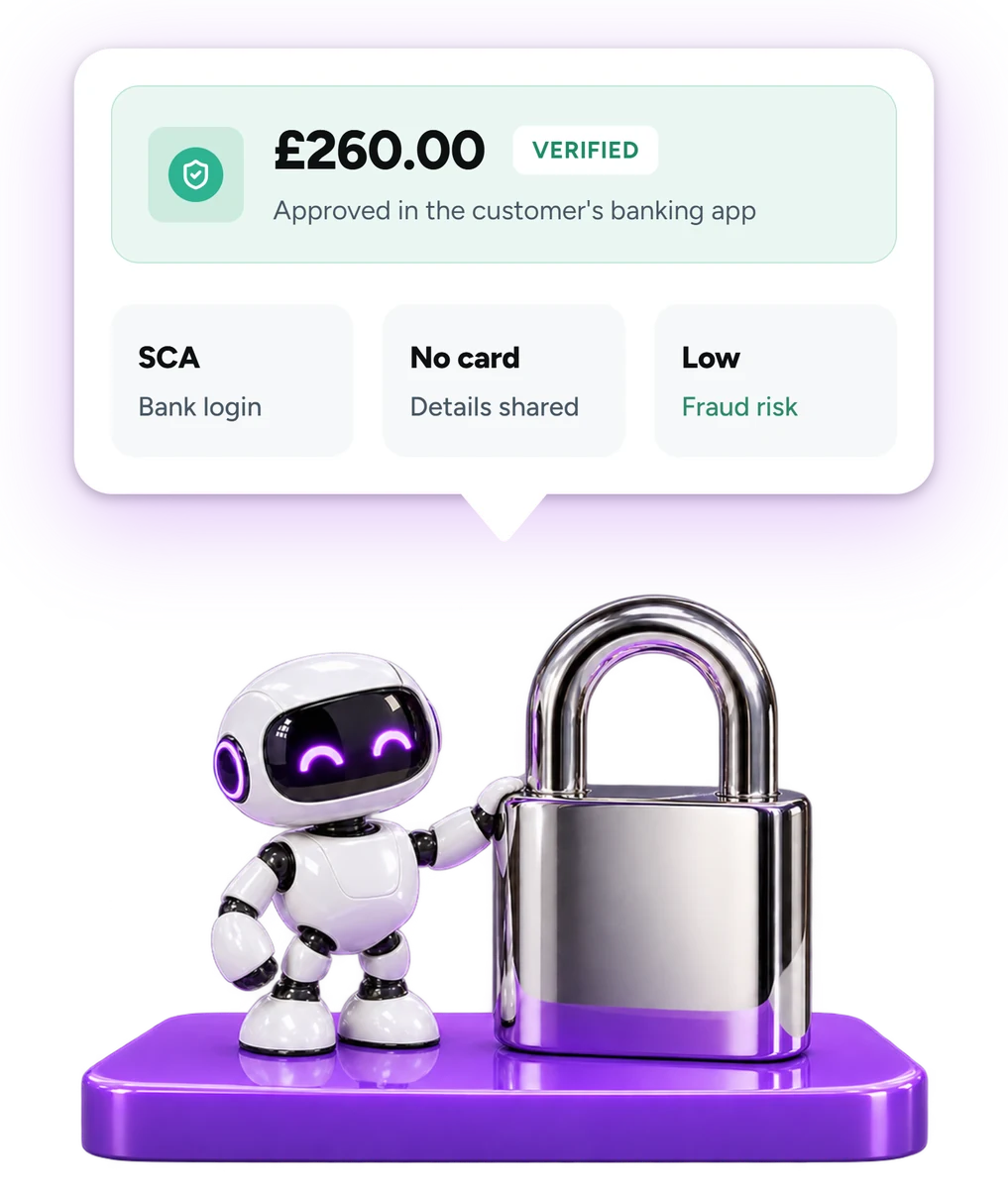
When you take payments with Grok, it can only do what the Atoa tools allow, and only for the business the key belongs to. Customers approve every Pay by Bank payment in their Bank app with Strong Customer Authentication. A production key can also start refunds and charge saved cards with earlier consent, without new approval. Start in sandbox.
- Start in sandbox. Sandbox keys only touch test data and the Atoa test bank.
- Treat the key like a password. Store it in your password manager and never paste it into a chat message.
- Rotate when needed. Regenerating the secret in API Access immediately stops the old key working.
- Check before acting. AI assistants can make mistakes, so read Grok’s summary before you send a link or confirm a refund. The figures come from Atoa, but the wording is Grok’s.
Testing first with sandbox
Want to take payments with Grok without real money first? Use your Sandbox Access secret with X-Atoa-Env: sandbox. Sandbox keys only reach test data and the Atoa test bank, which lets you choose whether a payment completes or fails. When you are ready, switch the header to production and paste your production secret. Real payments land in your business bank account, as with every Atoa payment.
Troubleshooting
- “Merchant not found” or authentication errors. The key and the
X-Atoa-Envheader don’t match. Use a production key withproductionand a sandbox key withsandbox. - Grok answers without using Atoa. Attach the connector to the chat first (+, Connectors, atoa-payments), or start your message with “Using Atoa”.
- The wrong customer or order. Refer to the order number, for example FC-2044, rather than a name. Grok then reads the customer from the original payment record.
- A slow first answer. Grok sometimes searches the web before calling a connector. Asking it to “use Atoa” keeps it on your data.

See Atoa's payment guides first on Google
Add Atoa as a preferred source and our guides show at the top of your Google Search results.
Frequently asked questions
Can Grok move money out of my bank account?
Grok can’t access your bank login or pay from your bank account. With a production key, it can start refunds you ask for from your Atoa balance and charge saved cards with earlier consent, without new approval. Customers approve every Pay by Bank payment in their Bank app.
Do I need to write any code to take payments with Grok?
No. To take payments with Grok you paste the Atoa MCP server address and two headers into Grok’s custom connector form. There is nothing to install or host.
Should I start with sandbox or production?
Start with sandbox. Sandbox keys only reach test data and the Atoa test bank, so you can try every prompt safely before switching the header and key to production.
What can I ask Grok to do with Atoa?
Create payment links and QR codes, check whether a payment has been made, list and filter transactions, manage customers, and in production, issue refunds.
Sources (as of 2026)
- Atoa MCP server documentation: docs.paywithatoa.com/mcp-server
- Grok connectors: xAI documentation
- Model Context Protocol: modelcontextprotocol.io
- Atoa Pay by Bank: paywithatoa.com/gb/products/pay-by-bank
- Agentic payments: paywithatoa.com/gb/products/agentic-payments
This publication is provided for general information purposes and does not constitute legal, tax or other professional advice from Atoa. We make no representations, warranties or guarantees, whether expressed or implied, that the content in the publication is accurate, complete or up to date. All logos and trademarks are property of their respective owners.